raise hand in Zoom
Zoom has become one of the most widely used video conferencing platforms in the world, especially for online meetings, virtual classrooms, webinars, and remote collaboration. One of its most useful features for maintaining order and encouraging participation is the “Raise Hand” function. Understanding how to raise hand in Zoom helps users communicate without interrupting the speaker and ensures smoother interactions in both professional and educational settings.
Understanding the Raise Hand Feature in Zoom
The Raise Hand feature in Zoom is a non-verbal communication tool that allows participants to signal they want to speak or ask a question. Instead of unmuting and interrupting the conversation, users can virtually raise their hand, which alerts the host and other participants. This feature is particularly valuable in large meetings, online classes, and webinars where multiple people want to contribute.
When someone raises their hand, a small hand icon appears next to their name in the participant list and sometimes on their video tile. The host can then acknowledge the request and invite the participant to speak.
How to Raise Hand in Zoom on Desktop
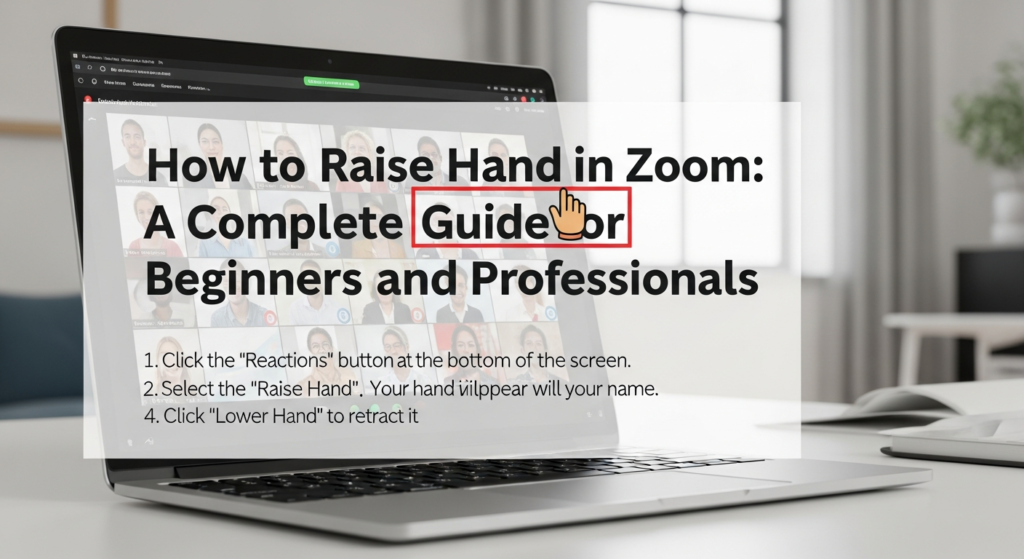
Learning how to raise hand in Zoom on a desktop computer is simple and works almost the same on both Windows and macOS. During a Zoom meeting, the Raise Hand option is located in the meeting controls at the bottom of the screen. Participants need to click on the “Reactions” or “Participants” button, depending on their Zoom version.
Once the menu opens, clicking “Raise Hand” immediately notifies the host. The hand icon will remain visible until the participant lowers it or the host clears all raised hands. This method is commonly used in professional meetings and virtual classrooms conducted on laptops or desktop computers.
How to Raise Hand in Zoom on Mobile Devices
For users attending meetings on smartphones or tablets, knowing how to raise hand in Zoom on mobile is equally important. The Zoom mobile app offers the Raise Hand feature within the meeting controls. Participants need to tap the screen to bring up the menu, then select “Reactions” or “More,” where the Raise Hand option appears.
Once selected, the hand icon is displayed next to the participant’s name. Mobile users can lower their hand the same way by tapping the option again. This makes participation easy even when joining meetings on the go.
How to Raise Hand in Zoom Webinar Mode
Webinars function differently from standard Zoom meetings, so understanding how to raise hand in Zoom webinar mode is essential. In webinars, participants are usually muted by default and cannot speak unless the host allows it. The Raise Hand feature becomes the primary way for attendees to interact.
In a webinar, the Raise Hand option is typically found in the Q&A or Reactions section. When an attendee raises their hand, the host or panelist receives a notification and can choose to unmute the attendee or address their question verbally. This structured interaction helps maintain control in large-scale virtual events.
How Hosts Manage Raised Hands in Zoom
Knowing how to raise hand in Zoom is only part of the experience; hosts also play a key role. Hosts can view raised hands in the Participants panel, where names are often sorted with raised hands at the top. This makes it easier to manage turn-taking and prioritize questions.
Hosts can also lower individual hands or clear all raised hands at once. In classrooms, instructors often use this feature to call on students, while in business meetings, facilitators use it to guide discussion without interruptions.
Common Issues When Using the Raise Hand Feature
Sometimes users struggle with how to raise hand in Zoom because the option appears missing or disabled. This can happen if the Zoom app is outdated or if the host has restricted participant reactions. Updating the Zoom application usually resolves visibility issues.
Another common issue occurs when participants confuse reactions like emojis with the Raise Hand feature. While emoji reactions are temporary, the Raise Hand icon stays active until lowered, making it more suitable for requesting to speak.
Why the Raise Hand Feature Is Important in Virtual Meetings
Understanding how to raise hand in Zoom improves meeting etiquette and overall communication. It prevents people from talking over one another and helps hosts manage time efficiently. In online classes, it creates a classroom-like environment where students can participate respectfully.
For corporate meetings, the Raise Hand feature encourages inclusive discussions by giving everyone an equal opportunity to contribute. It also helps introverted participants feel more comfortable engaging without speaking up immediately.
Best Practices for Using Raise Hand in Zoom
Using the Raise Hand feature correctly enhances its effectiveness. Participants should raise their hand only when they genuinely want to speak or ask a question. Lowering the hand after speaking helps keep the participant list organized and avoids confusion.
Hosts should explain how to raise hand in Zoom at the beginning of meetings, especially when working with new users or large groups. Clear instructions ensure everyone knows how to participate appropriately.
Differences Between Raise Hand and Emoji Reactions
Many users confuse emoji reactions with the Raise Hand feature, so it’s important to understand the difference when learning how to raise hand in Zoom. Emoji reactions like thumbs up or clapping are temporary and disappear after a few seconds. They are meant for quick feedback rather than requesting attention.
The Raise Hand feature, on the other hand, stays visible until it is lowered. This makes it ideal for structured discussions, Q&A sessions, and classroom participation.
How to Lower Your Hand in Zoom
After learning how to raise hand in Zoom, users should also know how to lower it. The process is the same as raising it. Clicking or tapping the “Lower Hand” option removes the hand icon from the participant list.
Lowering your hand after speaking is considered good Zoom etiquette. It helps hosts quickly identify who still wants to speak and keeps meetings flowing smoothly.
Using Raise Hand in Zoom for Online Classes
In virtual learning environments, knowing how to raise hand in Zoom is essential for both students and teachers. It allows students to ask questions without interrupting lectures and gives teachers a clear way to manage classroom discussions.
Teachers often use raised hands to track participation, call on students, and encourage engagement. This feature helps replicate the experience of a physical classroom in an online setting.
Final Thoughts on How to Raise Hand in Zoom
Mastering how to raise hand in Zoom is a small but powerful skill that greatly improves virtual communication. Whether you’re attending a business meeting, hosting a webinar, or participating in an online class, this feature helps maintain order, respect, and clarity.
As remote work and online learning continue to grow, understanding Zoom’s interactive tools becomes increasingly important. The Raise Hand feature ensures everyone gets a chance to be heard, making virtual meetings more productive and inclusive for all participants.